No-Code Robot Software for Tekla Workflows
Prepare beam jobs directly from Tekla, simulate the selected job, and adapt assembly coordinates to measured geometry. The engineer prepares the job; the operator reviews the measured result and releases the calculated coordinates for robotic assembly and welding.
Software for Structural Steel Production
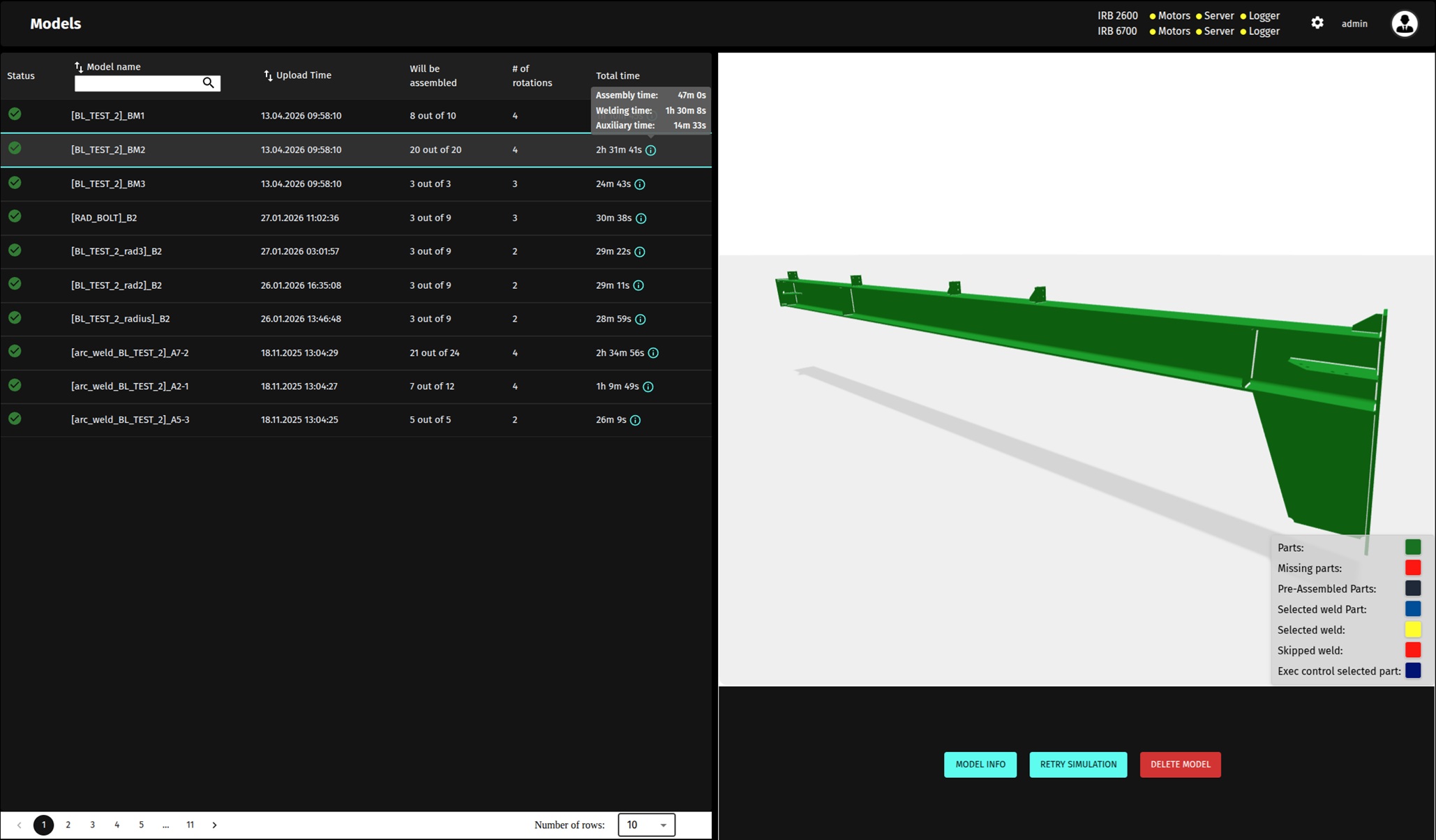
The engineer selects a beam in Tekla and sends the job through the Quant plugin. Before production, the software simulates the job and shows the component count and estimated assembly and welding time. These are planning estimates, not guaranteed cycle times.
QUANT STEELFAB and QUANT STEELFAB 360 use the same assembly, welding, and software workflow. They differ in how the beam moves to the next setup: crane-assisted repositioning or an integrated rotator initiated by the operator.
The Process
The same model-driven assembly and welding workflow in both systems. The difference is how the beam moves to its next setup.
- 01
Select & Simulate
A Tekla engineer selects beam assemblies in the Quant plugin. Quant software simulates the job and reports the component count and estimated assembly and welding time. These are simulation estimates, not guaranteed production cycle times.
- 02
Measure & Check
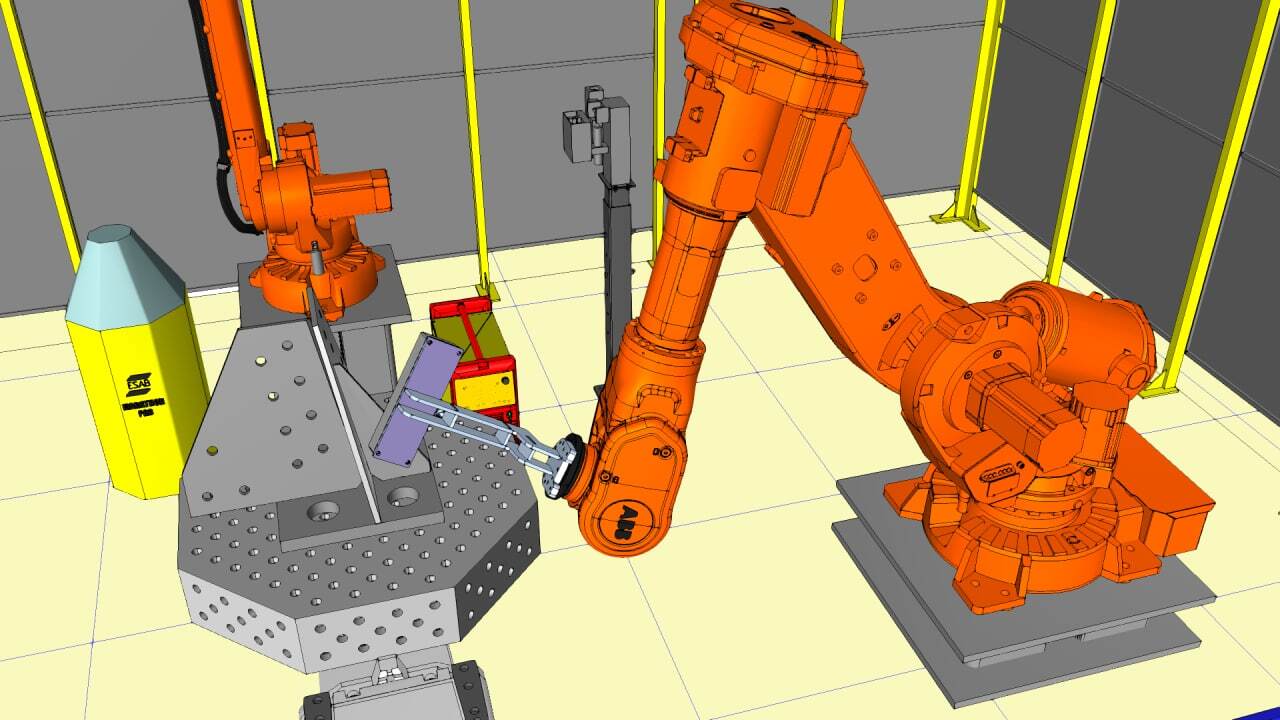
Scanner measures the beam position and dimensions and matches its point cloud to the 3D model. Once at the start of the job, it scans the parts tables, checks outlines and thickness, and reports missing required parts or thickness mismatches. Unrelated parts are ignored.
- 03
Review & Release
The software calculates a transformation of the measured beam and part coordinates. The operator reviews the green, yellow, and red match overlay and selects Continue to release the transformed coordinates to the assembly robot. The colors indicate degree of match, not universal pass/fail thresholds.
- 04
Assemble & Weld
The robots perform fit-up, tack welding, and finish welding for supported components. TouchSense locates the weld before the welding pass. The current configuration does not continuously track the seam during welding or correct the weld path from a laser scan.
Operators review the match and choose whether to continue; they do not manually edit component placement. A supervisor or production engineer reviews exceptions that require an engineering decision. Supported versions and export requirements are specified during project engineering.
Core Software Features
Tekla Job Preparation
An engineer selects the beam and prepares the job with the Quant plugin. Supported versions and export requirements are specified during project engineering.
Measured Assembly Coordinates
The software matches Scanner measurements to the nominal model and calculates the coordinate transformation for assembly. TouchSense separately locates each weld before the welding pass.
Batch Size One Ready
Model-driven task generation reduces repeated teaching between different beam designs. Actual cycle time depends on part count, weld length, handling, and the required checks; a unique beam is not assumed to have the same production efficiency as a long batch.
Checks Before Production
Scanner measures the actual beam position and dimensions and matches them to the nominal model.
At the start of a job, Scanner scans the parts tables once and checks component outlines and thicknesses.
A matching outline with the wrong thickness, or a missing required component, prompts an operator notification.
Parts unrelated to the selected job are ignored. Loading, setup checks, and operator review remain part of the process.
Review the Match, Then Release the Job
The software displays a green, yellow, and red overlay showing the degree of match between measured geometry and the nominal model. These colors are not universal pass/fail thresholds.
The software calculates the assembly coordinate transformation. The operator reviews the result and selects Continue to release those coordinates to the robot; the operator does not manually edit them.
From Technology to Your Production Cell
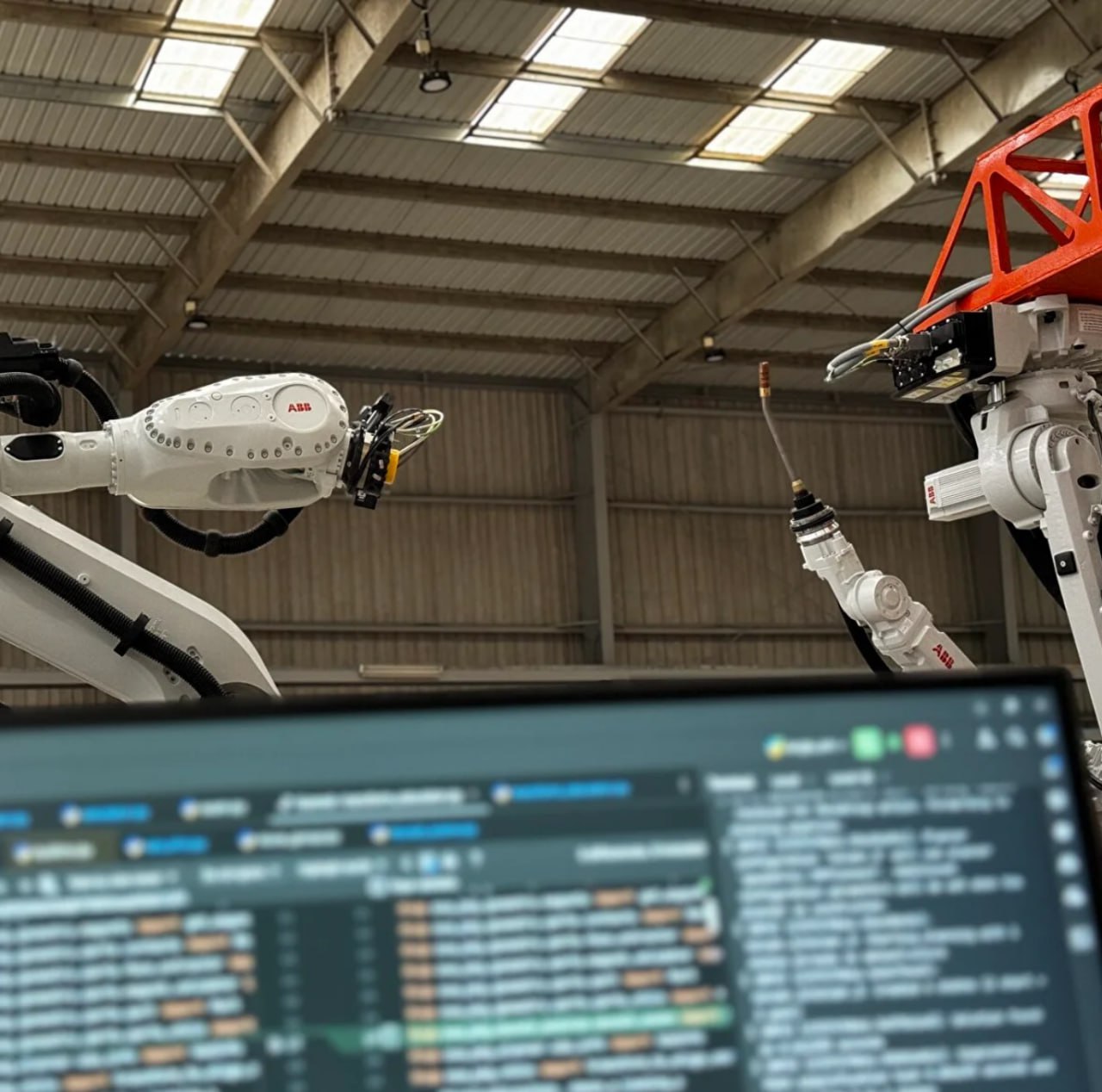
Compare the two systems, review an application, and define the scope for your own production mix. Configuration and output depend on the parts, weld access, and handling requirements.
QUANT STEELFAB specifications
Beam assembly and welding with operator-guided, crane-assisted setup changes.
QUANT STEELFAB 360 specifications
The same assembly and welding workflow, with operator-initiated rotation to the next setup.
Beam assembly project in India
Explore the operating QUANT STEELFAB installation in Mangalore and its production workflow.
Request a feasibility review
Discuss your beam portfolio, weld requirements, and site constraints.